How to install Oracle 10g on Apple Mac OS 10.4 Intel using Parallels
Update, 2009:
Since I wrote this article in 2007 there have been new releases of Oracle (including 10g Express Edition for Linux), Parallels, VirtualBox, Mac OS and every flavour of Linux. Ubuntu has become a favourite desktop Linux, and is now supported by Oracle, including a convenient XE installation. Parallels Tools now provides file sharing for Linux, and Oracle provides pre-built VirtualBox demo VMs for download. Many of us who moaned about the lack of an Oracle version for Mac have found that we don't really need one after all.
I have not updated the document to reflect these changes. If you just want a quick and easy Oracle installation, have a look at Oracle Express Edition for Linux. You still have to increase the swap space as shown below, but otherwise the installer takes care of just about everything.
Introduction
Back in 2002, Oracle announced 9.2 Early Adopters' Edition for Mac OS 10.2. It was theoretically for OSX Server rather than the desktops and laptops we all wanted it for, you had to jump through a few hoops to get it working, it had no internal JVM, it didn't do Native Compilation, and SQL*Plus took up to ten seconds to connect. However, I had Oracle on my G3 iMac and that was pretty cool.
A couple of years later, out came 10g for Mac OS 10.3. This was a simpler install, everything worked, and we seemed to be getting somewhere. Unfortunately, there progress stopped. When Mac OS 10.4 came out, you could just about install 10g if you jumped through some more hoops - but soon there was a new range of Macs that ran on something called an "Intel chip", and Oracle did not run on that. So from 2006 with the whole Apple range now running on Intel, there is no Oracle product for either the OS version or the hardware platform.
However, Parallels Desktop For Mac has been getting some great write-ups, as it makes use of the Mac's shiny new Intel chip to run software compiled for Intel with almost native efficiency. A virtual database server even has some advantages, since you'll get a client-server setup that's similar to many commercial Oracle installations. It'll also be easy to experiment with configurations, and you can make a backup by simply copying the Parallels .hdd file.
Note about Howard Rogers/Dizwell links
Shortly after this article was written, Howard Rogers closed the Dizwell site. Unfortunately this article linked to some excellent animated installation guides that were there. These days (as of 2015), following a complete site overhaul, he is writing again and you can download his pre-built Centos/Oracle disk image from www.dizwell.com.
There are other easy-to-follow CentOS and Oracle installation guides about, for example Tim Hall's Linux and Oracle installation guides on Oracle Base.
I hope the remainder of this article is still useful.
Overview
What we're going to do is:
- Create a Parallels virtual machine.
- Install CentOS, following Howard Rogers' CentOS installation guide for VMware (similar to Parallels).
- Install Oracle, following Howard Rogers' Oracle installation guide for CentOS.
- Install Oracle Instant Client For Mac OSX so we can have SQL*Plus in a Mac Terminal window, just like old times. (The Instant Client also includes JDBC and ODBC drivers etc.)
- Optionally, we'll also set up iSQL*Plus, SQL Developer and anything else I can get working.
This will give us a virtual database server that will appear like another computer on the network. For most purposes we'll be able to connect to the database from the Mac, without having to log into CentOS at all.
Download the software
Parallels Desktop for Mac
Parallels Desktop for Mac costs $79.99 (£42) at the time of writing, although you can download a time-limited free trial.
CentOS
You also need a guest OS capable of running Oracle. Many choose Windows for its convenience and the ability to use tools such as PL/SQL Developer or (if you must) TOAD. However, Redhat Linux is an Oracle-supported platform (2006's Oracle Unbreakable Linux is essentially Redhat with an Oracle badge), and CentOS is a free Redhat clone. You can buy CentOS on DVD (it's very cheap since you are only paying for the distribution costs) or download a disk image in .iso format. It's further complicated by a choice of versions (I chose CentOS 4.4 for i386), mirrors (I chose the "actual country" download mirror site, in my case UK), formats (single DVD rather than multiple CD) and download methods (I chose Bittorrent). (Update: CentOS 5 is the current release as of Summer 2007.)
You can download Bittorrent free from www.bittorrent.com. With Bittorrent, you download a small control file such as CentOS-4.4-i386-binDVD.torrent, and open it in the Bittorrent application, which drives the actual download. I started it up and left it running overnight. (I'm told Bittorrrent can be extremely fast, but in my case it wasn't. If you have problems there is a lot of help on the Net.)
Oracle 10g
At the time of writing, this is Oracle Database 10g Release 2 Enterprise/Standard Edition for Linux x86 32 bit. There is no convenient way provided to share files between the VM and the host, although we can set up an NFS share later, which allows you to access Mac files directly from Linux.
Create a new Virtual Machine
Parallels' supplied help explains how to get this started. Essentially you create a new virtual machine (VM) using the "Install OS" button, and follow the onscreen instructions.
- Choose "Custom OS installation" (Windows users get a handy Express option, but no such luck for Linux).
- For the OS Type, choose Linux and Red Hat Linux (RHL is the same as CentOS for our purposes).
- I gave it 756 MB of RAM (my iMac has 2 GB), and 15 GB (15360 MB) of disk space, selecting Plain rather than Expanding (it said it would run faster). You could make it bigger, but huge files are slower to back-up, copy and so on. (However, if you install Application Express you will need at least 936 MB of memory, and a bit more disk space.)
- For the hard disk image file location, I chose a spot on my Firewire drive (a subfolder per VM is a good idea).
- For networking, choose "Bridged Ethernet" (see "Networking for Dummies" box, below).
- "Default adaptor" will do (this lets it choose between Ethernet or Airport automatically), or just pick Ethernet.
- Give the VM a name. This is the name within Parallels, not the CentOS hostname.
- Select "ISO file" for the installation media, and show it the CentOS .iso file you downloaded earlier. Hit "Finish" and be prepared for a ten minute wait while it formats 15GB of disk space.
Install CentOS
Follow Howard Rogers' guide to installing CentOS 4.
Note however that this is written for VMware on Windows, and the networking set-up steps are subtly different in Parallels for Mac. (Those who are already familar with this stuff will take it in their stride, but the rest of us may need to look at Networking for Dummies, below.)
Resist the urge to use the CentOS "Up2Date" tool in the top right corner to get all the CentOS system tools up to date, at least until you have installed Oracle and made a backup (i.e. copied the .hdd file - or in Parallels 3.0, created a snapsot). For example some system libraries may be altered or renamed by an upgrade, and you'll have to start tweaking installer scripts to get them to work, without really knowing what effect the changes had.
Note that "Parallels Tools" are currently only available for Windows, OS/2 and Solaris, and not for CentOS. This isn't a big deal, but just means we don't get a convenient way to switch context or copy and paste between the Mac and the VM. (NoMachine NX Client is worth a look, although I haven't tried it myself. I'll update this document if I do.)
There is also no way provided to share files between the VM and the host, but you can set up an NFS share. To keep this installation guide simple, I have written a separate NFS setup guide. (If you are not familiar with the networking involved, you may want to read "Networking for Dummies", below, before tackling NFS.) With NFS in place, you can download and unzip the Oracle software to the Mac, rathr than having to download it separately within any VM you create.
It may also be an idea to add some extra swap space, depending on how much memory you gave the VM. For example to add 512MB, execute the following commands with root privileges (either become the root user first using the command su -, or place sudo in front of each command and enter your own password when prompted):
- dd if=/dev/zero of=/etc/extraswap bs=1M count=512
mkswap /etc/extraswap
swapon /etc/extraswap - Edit /etc/fstab to include the line:
/etc/extraswap swap swap defaults 0 0 - After adding the new swap file and enabling it, make sure it is enabled by viewing the output of the command cat /proc/swaps or free -m (the "-m" option makes it display in megabytes).
Networking for Dummies
Parallels provides three Network Adapter options, which represent the different ways the VM can connect to the local network. The static IP address will depend on the network adaptor we select. (You can easily change it later, so feel free to experiment.)
- Bridged Ethernet: the VM becomes a peer of the Mac. They will be in effect two machines sharing a common network gateway, which means their IP addresses must be in the same range. I'll be using this option.
- Host-only Networking: the VM becomes a client of the Mac. It can only see (and be seen by) its host machine, and won't have Internet access. Its IP address should be in the same range as "Parallels Host-Guest" (see screenshot below).
- Shared Networking (Network Address Translation): the VM and the Mac will appear as a single machine. Parallels recommend this for a quick and easy general purpose set-up, but it is not ideal for a database server.
At the Network Configuration screen in the CentOS installer, the default setting is to use DHCP. You do not want to use this. DHCP (Dynamic Host Configuration Protocol) is great at automating network configuration, but because it dynamically hands out temporary IP addresses, any Oracle utility you configure by specifying the IP address will break sooner or later at the whim of DHCP.
In VMware on Windows (as in Howard's guide) you would check the VMware settings to find the VM's name on the network, such as "VMnet1", type ipconfig in a cmd window to see VMnet1's IP address, and use that information to pick a new static IP address back in the CentOS installer. However, this is where VMware and Windows differ from Mac OSX and Parallels. OSX does have an "ipconfig" command, but it's a rather different beast and requires a bunch of additional parameters depending on what type of information you are interested in.
The related command ifconfig gives me output like this (I've changed a few random values in case any hackers are reading this):
/Users/williamr: ifconfig -u en0
en0: flags=8963<UP,BROADCAST,SMART,RUNNING,PROMISC,SIMPLEX,MULTICAST> mtu 1500
        inet6 fe80::216:cbfe:fe9c:efed%en0 prefixlen 64 scopeid 0x4
	inet 10.0.1.2 netmask 0xffffff00 broadcast 10.0.1.255
        ether 00:16:cb:8c:ee:ed
        media: autoselect (100baseTX ) status: active
	supported media: autoselect 10baseT/UTP <half-duplex> 10baseT/UTP <full-duplex> 10baseT/UTP <full-duplex,hw-loopback>
	10baseT/UTP <full-duplex,flow-control> 100baseTX <half-duplex> 100baseTX <full-duplex> 100baseTX <full-duplex,hw-loopback>
	100baseTX <full-duplex,flow-control> 1000baseT <full-duplex> 1000baseT <full-duplex,hw-loopback> 1000baseT <full-duplex,flow-control> none
The label on the left identifies the network device, in this case en0, the Mac's Ethernet connection (I used the -u en0 option so it only shows en0, and not Airport or my Firewire drive) and it's telling me that its address is 10.0.1.2 and the subnet mask is 255.255.255.0 (shown in hexadecimal as ff ff ff 00).
Alternatively, open System Preferences, Network, and look at the "Network Status" page: you may see an entry something like this (depending on your network connection of course), which tells me that my Mac's internal IP address is 10.0.1.2:1This is behind my firewall - when I connect to a public Internet website I will appear to have a different address, set by my ISP.

If you are on wi-fi it's even easier - Option-click the Wi-Fi symbol in the menu bar.
The two Parallels entries below it apply to Host-Only Networking and Shared Networking. Since I'm not using either of these right now they are not relevant. The new static address I'm going to use for CentOS will be of the form 10.0.1.xxx; that is, matching the Mac's address but with a different number in the final slot.2 If we were using Host-only Networking as in Howard's example, we would read the "Parallels Host-Guest" address from the "System Preferences, Network" screen, and choose an address in the same range, for example 10.37.129.10.The two other pieces of information you will need are the addresses of the DNS server and the default gateway (in my case the router, although in some setups it could also be a proxy server). DNS looks up names such as "williamrobertson.net" and translates them into IP addresses. On home setups it's common for the DNS server and router to share the same address (but don't count on it). There are various ways to find this information, but the easy way to find the router address is by selecting "Built-in Ethernet" in the "System Preferences, Network" screen above. Here, my router is at 10.0.1.1 and my subnet mask is 255.255.255.0:

Yet another way, which also tells you the DNS address, is using the command ipconfig getpacket en0:
/Users/williamr: ipconfig getpacket en0
op = BOOTREPLY
htype = 1
flags = 0
hlen = 6
hops = 0
xid = 341754190
secs = 0
ciaddr = 10.0.1.2
yiaddr = 10.0.1.2
siaddr = 0.0.0.0
giaddr = 0.0.0.0
chaddr = 0:16:cb:8d:ef:ed
sname = ?
file = ?
options:
Options count is 10
dhcp_message_type (uint8): ACK 0x5
server_identifier (ip): 10.0.1.1
subnet_mask (ip): 255.255.255.0
lease_time (uint32): 0x3840
option_overload (uint8): 0x3
router (ip_mult): {10.0.1.1}
domain_name_server (ip_mult): {10.0.1.1}
end (none):
end (none):
end (none):
The line with "server_identifier" shows the gateway address, and the one with "domain_name_server" shows the DNS address. In this case they are both 10.0.1.1.
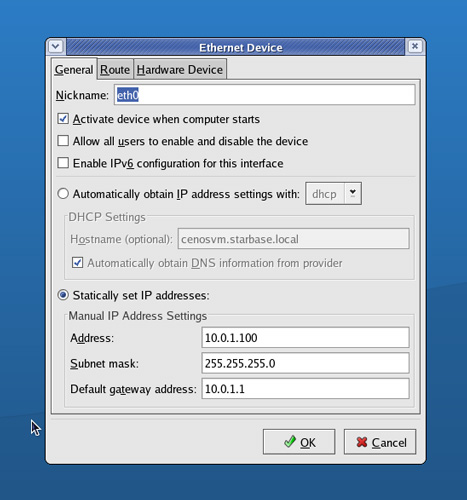
The CentOS installer applies these settings for you, but you can edit them later in the CentOS "System Settings, Network" screen:
Install Oracle
If you set up NFS, then you can download and unzip Oracle on the Mac, into a directory you share using NFS (www.oracle.com, Downloads, look for Database 10g for Linux, 32 bit).3 While it's downloading, it might be a good time to install your favourite Firefox bookmark synchronisation service - I use Foxmarks. Then within CentOS you can simply cd to that directory and execute ./runInstaller. Otherwise, you'll have to download Oracle from inside CentOS. You might as well also download the Oracle Database 10g Companion CD while you're at it (672 MB) if you are going to want to install Application Express later.
There isn't much I can add to Howard Rogers' guide to installing Oracle 10g Release 2 on Centos 4.3 & 4.4. Follow that. It'll work.
I also added the following to /etc/bashrc for a more friendly prompt:
bold=$(tput bold)
clear=$(tput sgr0)
PS1=${bold}'$PWD: '${clear}
unset bold
unset clear
This sets the prompt as the current directory name, in bold.
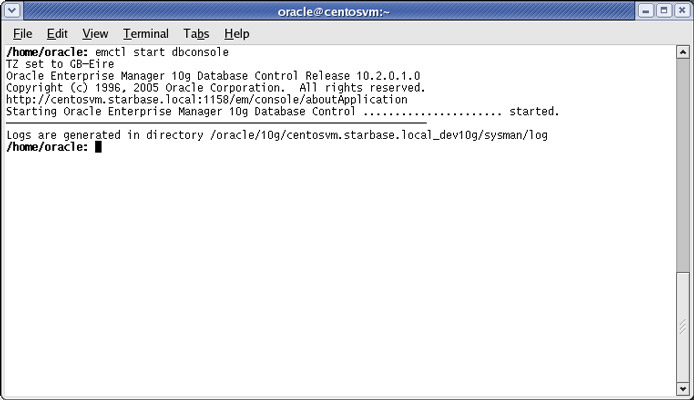
OEM has to be started manually:
Howard suggests editing /etc/rc.d/init.d/dbora (the database startup script called during the boot process) to have it start up OEM. I had mine start up iSQL*Plus (see below) as well. I added the following lines to the "start" section:
su - oracle -c "emctl start dbconsole" > /var/log/emctl.log 2>&1 &  # Takes a little while so start in background
sleep 3  # Give emctl a headstart
su - oracle -c "isqlplusctl start" > /var/log/isqlplusctl.log 2>&1
Note the URL displayed on the command line when you call emctl, which is http://hostname:1158/em/console/aboutApplication, where hostname is the name you set when installing Centos. You can actually control-click this URL and it will load in Firefox. However, it is rather more useful to be able to do this from the Mac.
Add an entry to the Mac's /etc/hosts file to map a name to the address, for example:
10.0.1.100 centosvm.starbase.local
Now we can enter the Enterprise Manager URL into a browser, and behold the moment of truth:

Back on the Mac - SQL*Plus, gqlplus, SQL Developer etc
Oracle 10g Instant Client for Mac OS X
Although the RDBMS software itself won't run on Intel Mac, it turns out that SQL*Plus does. The client software will also allow other applications to connect to the database.
- Find "Macintosh OSX" and download both the Basic and SQL*Plus packages from the Instant Client downloads page.
- Move the contents of both into a single convenient folder (I used /Applications/Application_folders/instantclient).
- Add the location to your PATH variable, and also set DYLD_LIBRARY_PATH to point to it; for example:
export DYLD_LIBRARY_PATH=/Applications/Application_folders/instantclient
PATH=${PATH}:/sbin:/usr/bin:${HOME}/scripts:${DYLD_LIBRARY_PATH}:. - Fire up SQL*Plus, using the fully-qualified host and service names:
/Users/williamr: sqlplus sys/xxxxx@//centosvm.starbase.local:1521/dev10g.starbase.local AS sysdba SQL*Plus: Release 10.1.0.3.0 - Production on Sun Dec 10 16:18:38 2006 Copyright (c) 1982, 2004, Oracle. All rights reserved. Connected to: Oracle Database 10g Enterprise Edition Release 10.2.0.1.0 - Production With the Partitioning, OLAP and Data Mining options SQL> SELECT COUNT(*) FROM user_tables; COUNT(*) ---------- 703 1 row selected. SQL> - Here's a rather basic shell script for starting SQL*Plus. Save the following in convenient directory and name it sql.
(If you're worried that someone might snoop your password by entering ps -auxU williamr | grep sqlplus, or if you want to allow for
multiple VMs, it'll take a bit more work).
A marginally more flexible version is here. (It assumes you have gqlplus - see below.)
#!/bin/ksh

typeset -l connectstring=${1:-/nolog}

[[ ${connectstring} = sys/* ]] && auth="as sysdba"

exec sqlplus ${connectstring}@//centosvm.starbase.local:1521/dev10g.starbase.local ${auth}
gqlplus
This gives a better SQL*Plus command-line experience (or should do). To quote the documentation:
gqlplus is a UNIX front-end program for Oracle command-line utility sqlplus. gqlplus is functionally nearly identical to sqlplus, with the addition of command-line editing, history, table-name and optional column-name completion. The editing is similar to tcsh and bash shells.
Unfortunately I've found gqlplus isn't perfect - for example if you edit the current buffer by typing ed (with _EDITOR defined as vim or whatever) it wrecks the formatting by stripping all the leading spaces, and also strips any trailing semicolons, thus wrecking PL/SQL. ed also doesn't recognise the ORACLE_PATH environment variable and therefore doesn't find my scripts, although mysteriously they run fine. Maybe this is a configuration issue and as usual I'm just missing something. I'll update this page if I figure out how to fix it. Even so, it's a handy thing to have.
You can install it in CentOS if you like, but it'll run in a Mac Terminal window. You need the Oracle Instant Client set up first as it will look for a sqlplus executable.
- Download gqlplus (zipped tarfile). The instructions tell you how to unzip (gunzip filename) and untar (tar -xvf filename), but this is a Mac and I let Firefox do it for me.
- The download includes a README file with installation instructions, but essentially you
open a Terminal window,
cd to the unzipped gqlplus directory, and enter:
./configure
make
Now you can call gqlplus in place of sqlplus. It seems to take a little longer to start up, but it's worth it for the ability to scroll back through previous commands as you can on Windows. You could call this using a slightly modified version of the above script, sql.
iSQL*Plus
Although the server process is started by default when you create the database, it will need to be restarted any time you restart the database. Enter the following command in CentOS, as the oracle user:
isqlplusctl start
One annoyance I've found with iSQL*Plus is that the font for the work area is the default proportional one, which (fairly obviously, I would have thought) is unsuitable for entering code. However, if you view the source of the page you can find the name of the stylesheet, which is
${ORACLE_HOME}/oc4j/j2ee/oc4j_applications/applications/isqlplus/isqlplus/cabo/styles/cache/blaf-A0-en-mozilla.css4
For Internet Explorer it is blaf-A0-en-ie-5-macos.css. The "mozilla" one appears to be the default and is used in non-Mozilla based browsers such as Safari and Shiira.
You can edit this file, and add the following lines at the end (while I'm at it I'll also make any DBMS_OUTPUT text monospace):
textarea.xh { color: navy; font-family: monospace; font-size: 9pt; }
div.output  { font-family: monospace; font-size: 8pt; }
You can alter the session timeout interval from its default of 15 minutes by editing $ORACLE_HOME/oc4j/j2ee/oc4j_applications/applications/isqlplus/isqlplus/WEB-INF.
Note also that the traditional glogin.sql in $ORACLE_HOME/sql/admin is read by iSQL*Plus on startup and reconnection, so you can add things like set serveroutput on size unlimited here. (The documentation suggests that "Some privileged connections may generate errors if SET SERVEROUTPUT or SET APPINFO commands are put in the Site Profile or User Profile", although I'm not sure what sort of errors it means, or whether they are severe enough to offset the benefit of not having to retype the command manually each time.)
Anyway, once the server process is running, enter http://hostname:5560/isqlplus in your browser (substituting your VM's hostname). iSQL*Plus is documented in the SQL*Plus User's Guide and Reference.

SQL Developer
Download from www.oracle.com/technology/products/database/sql_developer. A ready-to-run Mac OSX binary is provided (SQLDeveloper.app). I must admit I was expecting some clunky Windows Java port, but I was pleasantly surprised. The Preferences are in the wrong place, but apart from that it's looking a lot like a real Mac application. Nice job, guys! More resources are available on the official SQL Developer mini-site. I won't repeat the "Getting Started" instructions here, as it's just a case of clicking on the icon.
Application Express
Simple, you might think
Start at the Application Express home page, which has many useful links including the download page, which in turn leads to the installation guide.
Essentially there are three steps:
- Install Oracle HTTP Server (also referred to as "Apache Standalone"), a lightweight web server, from the Companion CD (not actually a CD, but a zipped download).
- Run SQL*Plus script apexins.sql as SYS to install the database objects (this will create two schemas, with various tables, packages, public synonyms etc).
- Work through the Post-Installation Tasks in the installation guide, such as setting up a marvel.conf and starting the Oracle HTTP Server.
However in practice things were not quite so straightforward.
Some installation gotchas
Do not use the Companion CD to install Apex. Only use it to install Oracle HTTP Server.
The Companion CD Release 2 available on the 10g (10.2.0.1) database download page at the time of writing (February 2007) claims to include two versions of Application Express, "Oracle Application Express v2.2.1" and "Oracle Application Express (formerly HTML DB) v2.0". Once you've run the supplied installer, however (which gives you no such choice), the "Installed Products" list displays "Oracle HTML DB 10.2.0.1", and actually seems to have installed 1.6.5 There may be a better way to check your Apex version, but the installer creates two user accounts, FLOWS_FILES and FLOWS_n, where n represents the version number. These accounts are listed at the end of the intaller log. In my case the initial install gave me FLOWS_016000, indicating version 1.6.
After dropping both accounts with DROP USER CASCADE and running apexins.sql from a more recent Application Express download, I have a new FLOWS_020200 account.In the Installation Requirements section it says the shared_pool_size of the target database must be at least 100 MB, and suggests entering show parameter shared_pool_size at the SQL*Plus prompt to check the current setting. However, 10g uses Automatic Shared Memory Management by default, which means shared_pool_size will be shown as 0. My sga_target is 252 MB. Does that mean I can forget about it and carry on?
Not quite. sga_target specifies the total size of all SGA components, of which the Shared Pool is only one. You should therefore follow the installation guide's instructions and set shared_pool_size to 100 MB - under Automatic Shared Memory Management this will become the minimum size. (The actual size can be found in V$SGA_DYNAMIC_COMPONENTS.)
When running the installer for the Companion CD, it mentions that it needs to go in a separate Oracle Home, but then prompts you with the current one. (If you just hit "OK" it tells you that you can't use that one.) What should I put?
Oracle's official directory structure, the Optimal Flexible Architecture, would give you something like this:
/u01/app/oracle/product/10.2.0/db_1
/u01/app/oracle/product/10.2.0/client_1
There is some debate about how suitable this is for small installations where all this /u01/app/oracle/product business is somewhat redundant. Perhaps I'm missing something as I'm not a DBA, but I prefer something like this:
/oracle/10g/db
/oracle/10g/http
Or perhaps (since Oracle HTTP Server is independent of the database release):
/oracle/10g
/oracle/http
However, by this point I'd already defined the database home as /oracle/10g when installing the database, so I put the new home at /oracle/10g_http. It's not really ideal and now it's hard to change, as the installer hardcodes it in a large number of config files. Damn.
- Next, the installer prompts for database details including the service name. I enter it but it fails to connect. You need to enter the fully qualified name - not simply dev10g (in my case), but dev10g.starbase.local.
When running the apexins.sql script, you can specify a tablespace name which will become the default tablespace for the new Apex schemas. If you want to create a new one rather than relying on the default SYSAUX, the command is as follows (adjust if your file layout is different):
ALTER SYSTEM SET DB_CREATE_FILE_DEST = '/oracle/oradata/dev10g' SCOPE = BOTH;

CREATE TABLESPACE apex
EXTENT MANAGEMENT LOCAL AUTOALLOCATE
DATAFILE '/oracle/oradata/dev10g/apex.dbf' SIZE 100M AUTOEXTEND ON MAXSIZE 250M;
This will create a 100 MB tablespace called "APEX" that autoextends to up to 250 MB if it later runs out of space.
Then I specified APEX as the tablespace name when callling the script (see the installation guide). Afterwards there were 681 rows in DBA_SEGMENTS (mostly owned by FLOWS_020200) with a combined size of 84 MB, all in the new tablespace.
In Post-Installation Tasks, the installation guide mentions copying a directory named apex/images to a location specified in marvel.conf. However, there is no file named marvel.conf yet unless you installed via the Oracle Installer (which as you'll recall we're not using, as it would install the wrong version). Later on, the guide explains that you may have to create your own file, and explains how. However, the sample file shown in the document contains the line:
PlsqlDocumentProcedure wwv_flow_file_manager.process_download
but there is no such package - it should be:
PlsqlDocumentProcedure wwv_flow_file_mgr.process_download
- Also when setting the "images" path in marvel.conf, be sure to include a "/" (forward slash) character at the end, for example: Alias /i/ "/oracle/10g_httpclient/Apache/Apache/images/"
- If the shell variable LANG is set in the environment from which you start the Oracle HTTP Listener, it can cause some sort of conflict in mod_plsql resulting in an ORA-00604 error, and Apex fails to load at all. I'm afraid I didn't have the patience to get to the bottom of this, but when $LANG had the (default) value en_GB.UTF-8 it failed, and unsetting it with unset LANG before restarting the HTTP server solved the problem.
As a final post-installation step, add a line to the startup script to launch Oracle HTTP Server whenever the database is started:
# Start Oracle HTTP Server for Apex:
su - oracle -c "unset LANG; /oracle/10g_httpclient/opmn/bin/opmnctl startall" &

Free alternatives to Parallels
- VirtualBox: recommended by Lifehacker.
- Q